How to Choose the Right TV or Display for Billiie
Getting your business set up with Billiie is simple.
You don't need an expensive commercial digital signage display or specialized hardware.
Billiie can run on compatible Fire TV devices, Google TV / Android TV devices, or through a supported web browser, giving you several easy ways to turn a TV into a digital screen.
Whether you're using Billiie for digital signage, menus, business promotions, or advertising, here's what to look for when choosing your screen.
1. Choose a 32"–55" or Even a Bigger TV
Billiie works with a wide range of TV sizes, so the size you choose is completely up to you and what works best for your space.
Whether you need a 32-inch screen for a smaller area, a 42"–55" display, or an even larger TV for maximum visibility, Billiie gives you the flexibility to choose.
You can use TVs from popular brands such as:
- Amazon Fire TV
- Hisense
- Insignia
- TCL
- Samsung
- LG
- Sony
- And many others
Already have a TV? You may be able to use the screen you already own by installing the Billiie app or connecting an Amazon Fire TV Stick (6th Gen).
2. Choose How You Want to Run Billiie
There are several ways to connect a screen to Billiie.
Option 1 — Amazon Fire TV Stick (Recommended for most businesses)
If your TV has an available HDMI port, an Amazon Fire TV Stick can be one of the easiest ways to turn it into a Billiie-powered screen.
Connect the Fire TV Stick to your TV, connect it to Wi-Fi, install the Billiie app, and pair the screen with your Billiie account.
This is a great option if you already own a regular TV that does not have a compatible smart TV operating system.
Example setup:
- Regular 42"–55" TV
- Amazon Fire TV Stick
- Wi-Fi
- Billiie App
= Billiie Digital Display
Option 2 — Amazon Fire TV Smart TVs
You may not need a separate Fire TV Stick if your television already has Fire TV built in.
Fire TV televisions are available from Amazon and other TV manufacturers. Examples include:
- Amazon Fire TV televisions
- Hisense Fire TV models
- Insignia Fire TV models
- Other compatible Fire TV televisions
Simply connect the television to Wi-Fi, open the app store, install Billiie, and pair your screen.
No separate streaming stick is required when using a compatible Fire TV television.
Option 3 — Google TV / Android TV
Billiie can also be used on compatible televisions and streaming devices that support Google TV or Android TV.
Many televisions from brands such as Hisense, TCL, Sony, and others are available with Google TV.
Connect your television to Wi-Fi, open the Google Play Store, find the Billiie app, install it, and pair the screen with your account.
If your television doesn't have Google TV built in, a compatible Google TV or Android TV streaming device may also be used.
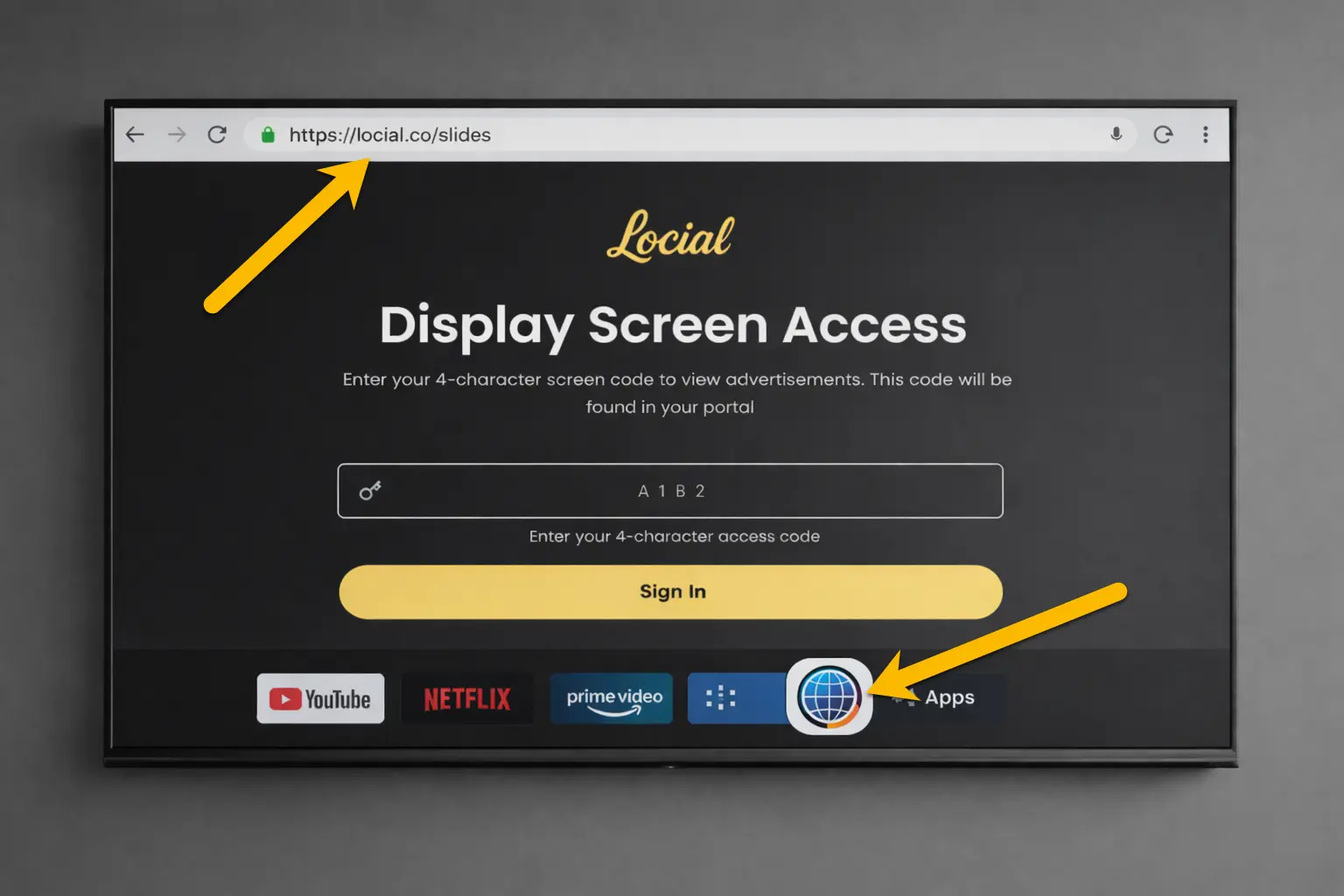
Option 4 — Web Browser
Billiie can also run through a compatible web browser.
This is useful for TVs, computers, mini PCs, or other devices that allow you to open a webpage in full-screen mode.
Open:
Then enter the screen code provided in your Billiie dashboard.
Once paired, your screen can begin displaying your Billiie content.
3. Pair Your Screen With Billiie
After installing or opening Billiie on your device, you'll receive instructions for connecting the screen to your account.
From your Billiie dashboard:
My Screens → Add Screen → Enter/Confirm Your Screen Code
Once paired, you can manage the screen remotely from your Billiie dashboard.
Depending on how you use Billiie, your screen can display:
- Digital signage
- Digital menus
- Business promotions
- Specials and announcements
- Advertising content
- Custom images and videos
Content can be managed without having to physically visit the TV every time you need to make a change.
Quick Compatibility Guide
Amazon Fire TV Stick
- Recommended
- Works with TVs that have HDMI
- Billiie app
- Great for upgrading an existing TV
Amazon Fire TV Smart TV
- Compatible models
- Fire TV built directly into the television
- No separate Fire Stick required
Hisense Fire TV
- Fire TV built in on supported models
- Install Billiie directly
Insignia Fire TV
- Fire TV built in on supported models
- Install Billiie directly
Google TV / Android TV
- Compatible models
- Install Billiie through Google Play
Regular Smart TV With Browser
- Browser option available
- Open Billiie.co/slides
- No Billiie TV app required
Already Have a TV?
Before buying a new television, check the TV you already have.
If it has Fire TV or Google TV / Android TV, you may be able to install Billiie directly.
If it doesn't, you may still be able to use it by connecting a compatible Amazon Fire TV Stick or other supported streaming device through HDMI.
That means you usually don't need to replace a perfectly good television just to use Billiie.
Important: Disable Sleep and Power-Saving Features
Your Billiie screen should remain active during your business hours.
Many TVs automatically turn themselves off after a period of inactivity. Power-saving and sleep settings can interrupt your digital signage or advertising.
Check your television's settings for options such as:
- Sleep Timer → Off / Never
- Auto Power Off → Off
- Auto Standby → Off
- Idle TV Power Off → Off
- Power Saving / Energy Saving / Eco Mode → Off
- Screen Saver → Never / Off
- Still Watching → Off
- HDMI-CEC / CEC Device Control → Off, if it causes the TV to shut down with the connected device
- No Signal Power Off → Off
- Inactivity Timer → Off / Never
Set these options to Off or Never whenever possible. The exact settings vary depending on the television or streaming device you're using.
Our Recommended Setup (But the Choice Is Yours!)
For businesses starting from scratch, we recommend:
42"–55" TV + Amazon Fire TV Stick + Billiie App
If you're purchasing a new television, a Fire TV or Google TV with Billiie app support built in can make the setup even cleaner because you may not need an additional streaming device.
Need Help Choosing a TV?
Not sure whether your current television works with Billiie?
Contact us before purchasing new equipment. Send us the brand and model number of your TV, and we'll help you determine the best way to connect it.
With Billiie, you don't need complicated digital signage hardware. Choose a compatible TV, connect it to the internet, pair it with your account, and manage your digital screens from one dashboard.