Digital Signage for Education Made Simple
Affordable digital signage for education. Manage school and campus screens, announcements, schedules, events and other content remotely.
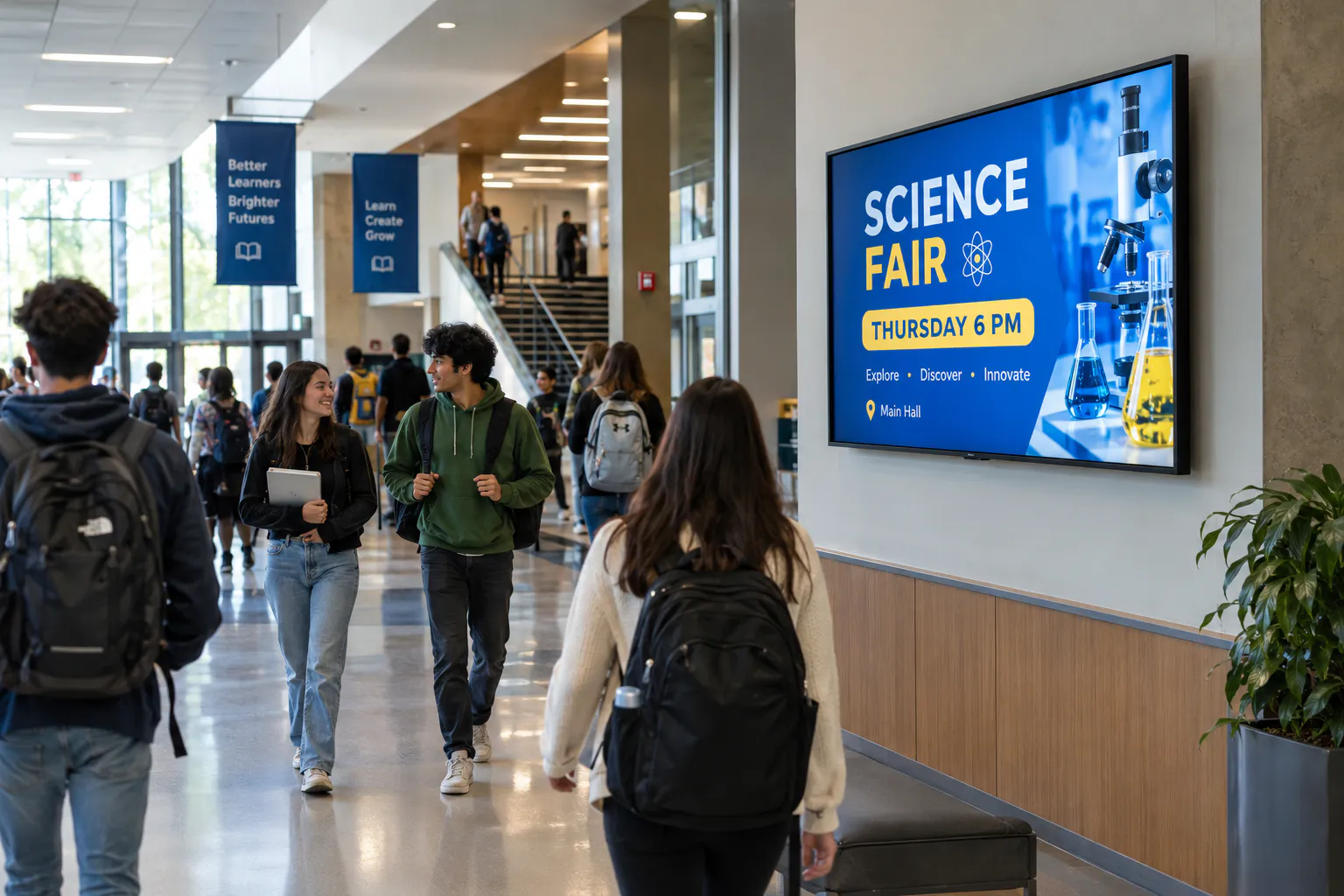
Walk through a school or university and think about how much information needs to move through the building every day.
Schedule changes. Upcoming events. Club meetings. Cafeteria information. Campus activities. Registration deadlines. Sports announcements. Visitor information. Student achievements. General reminders.
Traditionally, much of that communication has relied on printed posters, paper notices, bulletin boards, emails, intercom announcements, and staff members physically replacing signs.
Screens create another communication channel.
Digital signage for education allows schools, colleges, universities, training centers, and other educational organizations to use strategically placed screens to communicate information throughout their facilities.
But simply installing televisions isn't enough.
Effective education digital signage starts with three questions:
- 1Who needs to see the information?
- 2Where will they see it?
- 3When is that information relevant?
A display near a cafeteria serves a different purpose from a screen at the main entrance. A university residence hall doesn't necessarily need the same content as an academic building. An elementary school may communicate very differently from a college campus.
The goal shouldn't be to put a television on every available wall.
The goal should be to make important information easier to see.
Digital Signage Solutions for Education
Schools are information-heavy environments.
Hundreds or thousands of students, employees, parents, visitors, vendors, and community members may move through a facility every day.
Trying to communicate everything through one channel is difficult.
That's where digital signage solutions for education can complement existing communication systems.
Screens can be used for:
- School announcements
- Upcoming events
- Bell or activity schedules
- Club meetings
- Sports information
- Cafeteria information
- General reminders
- Student achievements
- Visitor information
- Campus activities
- QR codes
- Registration information
- School programs
- General directions
The important word is complement.
Digital signage shouldn't automatically replace email, text alerts, intercom systems, websites, learning-management systems, or other established communication channels.
Instead, it gives schools another way to reach people while they're physically inside the facility.
That's particularly useful for information that benefits from being visible repeatedly throughout the day.
Digital Signage for Schools
K–12 schools have very different communication requirements from retail stores or restaurants.
Students aren't customers.
The objective isn't necessarily to sell something.
Much of digital signage for schools should therefore focus on information, participation, recognition, and the school community.
School Announcements
One of the most straightforward uses for school digital signage is displaying general announcements.
A screen might show:
Example screenSCIENCE FAIR — THURSDAY AT 6 PM
BASKETBALL TRYOUTS — MONDAY
SCHOOL PICTURES — OCTOBER 14
PARENT NIGHT — 5:30 PM
These messages are much easier to understand from a distance than a screen containing several paragraphs of text.
Good school digital signs should communicate quickly.
Students walking through a hallway may only look at a display for a few seconds.
That means large typography, short messages, strong contrast, and clear hierarchy matter.
Digital Signage for Colleges & Universities
Universities create an entirely different signage challenge.
A college may have dozens—or hundreds—of buildings.
Academic departments, residence halls, athletic facilities, libraries, cafeterias, student centers, administrative offices, and other facilities may all need different information.
That makes digital signage for universities less about managing an individual television and more about managing a network.
Different Buildings Need Different Content
A student center might display:
- Campus events
- Student organizations
- Dining information
- Career fairs
- Guest speakers
An academic building might focus on:
- Department events
- Lectures
- Academic deadlines
- Room information
- Student opportunities
An athletic facility might display:
- Games
- Team information
- Schedules
- School achievements
A residence hall may need another content set entirely.
Effective university digital signage recognizes that not every screen needs to show the same thing.
College Digital Signage Should Be Organized by Audience
The larger the institution becomes, the more important content targeting becomes.
College digital signage can be organized around buildings, departments, facilities, or individual displays.
That allows an institution to communicate campus-wide information when necessary while still allowing specific locations to display information relevant to their audience.
This same approach applies to digital signage for colleges with several buildings or satellite locations.
Share Announcements, Events & Important Information
One of the strongest uses of educational digital signage is repeating information people might otherwise miss.
An email can be ignored.
A poster can blend into a wall.
An announcement made once over an intercom may be forgotten.
A strategically positioned display can reinforce information throughout the day.
Digital Signage for School Announcements
Digital signage for school announcements can include:
- School events
- Sports games
- Testing reminders
- Club meetings
- School closures or schedule changes
- Fundraisers
- Performances
- Parent events
- Community programs
- General reminders
The most important announcements should receive the most visual priority.
Don't place an important schedule change underneath eight unrelated messages.
Digital Signage for School Events
Schools can also create finished promotional graphics for individual events.
For example:
Example event graphicFALL CONCERT
FRIDAY • 7 PM
SCHOOL AUDITORIUM
That design could appear on selected school announcement screens leading up to the event and stop displaying afterward.
Temporary information should have an expiration plan.
An event that happened three weeks ago shouldn't still be occupying valuable screen space.
Use Digital Signage for Student Information
Digital signage for student information can help schools surface useful information in the places where students are most likely to need it.
Examples might include:
- Registration dates
- Application deadlines
- Tutoring information
- Library hours
- Campus resources
- Internship opportunities
- Career events
- Student organizations
- Transportation information
- Dining information
The content should match the age and needs of the audience.
Information appropriate for an elementary school will obviously differ from information displayed on a university campus.
That sounds obvious, but it's an important part of creating a useful signage strategy.
A screen shouldn't simply exist.
It should have an audience.
Turn School TVs Into Digital Displays
Some educational institutions already have televisions installed throughout their buildings.
They may be in hallways, cafeterias, reception areas, libraries, lounges, athletic facilities, or administrative offices.
Depending on the television, operating environment, network requirements, and software compatibility, existing TVs may potentially be repurposed as school digital displays.
That can make deployment considerably more practical.
Before purchasing additional hardware, inventory what the school already owns.
Record:
- Screen size
- Location
- Smart TV platform
- Internet connectivity
- Resolution
- Orientation
- Mounting method
- Typical operating hours
Not every television will necessarily be suitable.
But there's little reason to automatically replace compatible hardware just because a screen wasn't originally purchased specifically for signage.
Where Should Schools Put Digital Signage?
Screen placement should follow traffic.
Don't choose locations simply because there's an empty wall and an electrical outlet.
Ask where students, employees, parents, and visitors naturally look.
Hallway Digital Signage
Hallway digital signage can be effective because students repeatedly travel through the same areas.
Potential content includes:
- Announcements
- Events
- School achievements
- Club activities
- Schedules
- General reminders
However, hallway viewers are moving.
That means content needs to be understood quickly.
A complicated flyer with 150 words may look fine on a computer but be almost impossible to read while walking between classes.
Entrance and Lobby Screens
Entrance screens are particularly useful for visitors and parents.
They can display:
- Welcome messages
- Events
- General directions
- Office information
- School branding
- Visitor information
The entrance is also a good location for broad school-wide announcements because nearly everyone entering the building passes through it.
School Information Screens
School information screens near administrative offices, student centers, libraries, and common areas can contain more detailed information because people may spend longer near them.
The viewing environment should determine the design.
Digital Signage for School Cafeterias
Cafeterias are another natural location for screens.
Digital signage for school cafeterias could display:
- Today's menu
- Weekly menu highlights
- Meal information
- School announcements
- Upcoming activities
- General nutrition information
- School events
Schools should be careful not to overload cafeteria screens with too many unrelated messages.
If the primary purpose of a display is helping students understand today's meal choices, that information should remain visually dominant.
Secondary information can rotate separately or occupy another appropriate area of the screen.
Digital Bulletin Boards for Schools
Traditional bulletin boards aren't disappearing.
Nor do they need to.
But digital bulletin boards for schools provide an additional way to rotate information without physically covering a wall with paper.
A screen might cycle through:
- Student artwork
- School achievements
- Club announcements
- Upcoming events
- Community programs
- Sports results
- Academic recognition
This can be particularly useful in locations where many groups compete for limited bulletin-board space.
Digital School Notice Boards
The same principle applies to digital school notice boards.
Instead of placing 20 announcements on one screen simultaneously, rotate several clean designs.
Each announcement gets its own moment of attention.
That's usually easier to read than recreating a crowded physical bulletin board on a television.
Digital doesn't automatically mean better.
The content still has to be designed for the screen.
Classroom Digital Signage
Not every classroom needs dedicated signage.
In many cases, the classroom's existing presentation technology already serves its instructional purpose.
However, classroom digital signage can make sense in certain environments, particularly training facilities, labs, shared instructional areas, or rooms used by several groups.
Displays could communicate:
- Room schedules
- General instructions
- Upcoming sessions
- Training information
- Safety reminders
- Program information
The key is separating signage from active instructional technology when necessary.
A screen that teachers constantly need for presentations shouldn't become difficult to use because it has been unnecessarily turned into a permanent signage display.
Digital Signage for Training Centers
Education extends beyond traditional schools.
Trade schools, professional-training organizations, corporate learning centers, language schools, tutoring centers, certification facilities, and vocational programs can also use digital signage for training centers.
These environments may need to display:
- Course schedules
- Room assignments
- Upcoming sessions
- Program information
- Certification reminders
- General announcements
- Visitor directions
A training center with several classrooms can use screens in common areas to keep attendees informed without relying entirely on printed notices.
Schedule Content by Time & Date
Not every announcement should appear all day.
A morning reminder might only be useful before classes begin.
A lunch menu becomes less useful after lunch.
An after-school activity might deserve more visibility later in the day.
This is where scheduling becomes important.
With appropriate digital signage software for schools, content can be organized around when it's relevant.
For example:
Schools can also assign end dates to temporary content.
If homecoming is October 16, the promotion shouldn't continue appearing on October 20.
Good signage management includes removing outdated information—not merely adding new information.
Update School Screens From Anywhere
A single display can be managed relatively easily.
A network of 30 screens spread across several buildings cannot.
Remote management becomes increasingly important as the number of displays grows.
Rather than walking through a campus with a USB drive, administrators should be able to manage appropriate displays from a centralized system.
With Billiie, the workflow is straightforward:
- Create
- Upload
- Assign
- Schedule
- Display
The school creates its finished image or video using its preferred design software or designer.
The finished content is then uploaded to Billiie.
Administrators choose the appropriate screen, determine when the content should display, and manage the signage remotely.
Billiie does not function as an in-platform graphic editor.
Schools retain control over how their graphics are designed while using the platform to distribute and manage finished content.
Manage Multiple Screens Across Your Campus
This is where campus digital signage becomes significantly different from managing one TV.
Imagine a university with:
- 10 academic buildings
- 4 residence halls
- 2 libraries
- 3 dining areas
- 1 student center
- Several administrative buildings
Each may contain multiple displays.
Suddenly the institution isn't managing a television.
It's managing a network.
Effective digital signage for campuses requires organization.
Screens should have clear names and purposes so administrators understand where content is being sent.
For example:
- Student Center — Main Entrance
- Library — First Floor
- Science Building — Lobby
- Dining Hall — Menu Screen 1
That's far better than managing screens named:
Instead ofTV 1
TV 2
TV 3
As a signage network grows, organization becomes part of the infrastructure.
Assign Screens to Staff and Departments
Centralized management doesn't mean one employee should be responsible for every display.
In fact, that can create a bottleneck.
A university communications department might control campus-wide screens while individual departments manage their own displays.
An athletic department might manage athletic screens.
Dining services might manage cafeteria displays.
Student affairs might manage screens in the student center.
With Billiie, individual screens can be assigned to team members, allowing organizations to distribute management responsibilities.
This becomes especially useful for digital signage for multiple school locations.
A school system or educational organization operating several facilities doesn't necessarily need one person uploading every finished graphic to every screen.
Responsibility can be assigned to the people closest to the information.
Monitor Whether Screens Are Online
Content is irrelevant if the display isn't actually working.
A screen might lose its internet connection.
A television could be turned off.
A device could stop communicating.
Someone could change a setting.
For a small building, staff may notice quickly.
Across a large campus, a disconnected display might remain unnoticed for much longer.
Remote screen-status information helps administrators identify screens that need attention without physically inspecting every display.
This is an often-overlooked part of education signage software.
Managing signage isn't just about uploading content.
It's also about knowing whether the network is operating.
Don't Forget TV Power Settings
Schools using consumer smart TVs should review their television settings before deployment.
Many televisions include:
- Sleep timers
- Screensavers
- Automatic power-saving features
- Auto shutdown
- "Still watching" prompts
Those features make sense for ordinary home television use.
They can create problems for a signage screen expected to remain active throughout the school day.
Before deploying school TV displays, test the television through a full operating day.
Don't assume a screen will stay active simply because it worked for 20 minutes during installation.
Use Split-Screen Layouts Carefully
Some educational environments can benefit from displaying two types of information simultaneously.
For example, a school could use three-quarters of a screen for an upcoming event and the remaining quarter for a general reminder or QR code.
Another display might show a larger school announcement alongside a smaller schedule.
But more information isn't automatically better.
Dividing a screen into four or five small sections can make every section difficult to read.
The farther viewers are from the screen, the bigger this problem becomes.
Split-screen layouts should solve a communication problem—not simply fill available space.
What About Emergency Communications?
Schools need reliable systems for urgent and emergency communication.
Digital signage can potentially form part of a broader communication strategy, but a general-purpose signage platform should not be treated as a school's sole emergency notification system unless the entire system has specifically been designed, tested, integrated, and approved for that purpose.
Emergency communication may require dedicated systems, policies, procedures, redundancy, accessibility considerations, and other safeguards.
Schools should follow their established emergency-management procedures and applicable requirements.
Routine digital signage and life-safety communication should not be casually treated as interchangeable systems.
That's an important distinction for any authority discussion of digital signage for schools and universities.
Keep Accessibility in Mind
Educational signage serves diverse audiences.
Content should therefore be designed with accessibility and readability in mind.
Useful practices include:
- Large text
- Strong contrast
- Simple layouts
- Clear language
- Readable fonts
- Adequate display time
- Avoiding unnecessary flashing or distracting motion
Also consider the physical position of the screen.
A beautifully designed display mounted where people cannot comfortably see it isn't effective signage.
Accessibility requirements can vary by institution and jurisdiction, so schools should evaluate applicable standards when planning their deployment.
Protect Student Privacy
Schools should also think carefully about what information appears on public displays.
A school may want to celebrate achievements, promote student activities, or recognize accomplishments.
But public screens shouldn't become an excuse to display sensitive or restricted student information.
Institutions should follow their own privacy policies and applicable requirements when displaying names, photographs, educational information, or other student-related content.
When in doubt, the safer use of public signage is broad school information rather than personal or sensitive information.
Affordable Digital Signage for Schools
Digital signage can become expensive when organizations assume every installation requires specialized hardware, proprietary media players, commercial displays, complicated wiring, and large software contracts.
Some environments do require more robust equipment.
Others don't.
Affordable digital signage for schools starts with understanding what the institution actually needs.
A small training center with two screens has very different requirements from a university operating hundreds of displays.
Schools may already own compatible televisions.
Some may only need a handful of screens.
Others may grow their network gradually.
Start with the communication problem.
Then choose the technology.
Not the other way around.
Affordable Digital Signage Software for Schools
Software shouldn't make school communication harder.
Administrators already have enough systems to manage.
A practical digital signage software for schools platform should make it straightforward to upload finished content, select displays, schedule content, organize screens, and manage the network remotely.
Billiie is built around a simple model.
Schools create their finished graphics externally.
Upload them.
Assign them to the appropriate displays.
Schedule when necessary.
Manage the screens remotely.
Digital signage starts at $1 per screen per month, with no minimum number of screens, no contracts, and the ability to cancel anytime.
per month
- 1 screen$1/mo
- 10 screens$10/mo
- 100 screens$100/mo
- Includes your first screen
- No long-term contract
- Cancel anytime
That means a small school can start with one or two displays while a larger educational organization can expand as its requirements grow.
The technology doesn't need to determine the size of the deployment.
The school's needs should.
Building a Better School Digital Signage Strategy
Before installing a new screen, ask:
- 1Who is this screen for?
- 2What information belongs here?
- 3How far away will people view it?
- 4How long will they look at it?
- 5Who is responsible for the content?
- 6How often will information change?
- 7Does this screen need campus-wide or location-specific content?
- 8How will we know if the screen goes offline?
Those questions matter more than choosing flashy animations or filling every hallway with televisions.
Good digital signage solutions for schools begin with communication strategy.
The technology comes afterward.
Final Thoughts on Digital Signage for Education
The strongest digital signage for education doesn't exist simply because a school wanted more screens.
Every display has a purpose.
An entrance screen welcomes visitors.
A hallway display communicates upcoming events.
A cafeteria screen provides dining information.
A student-center screen promotes campus activities.
A university department displays information relevant to its students.
A multi-building campus uses centralized management to keep its growing screen network organized.
That's the difference between televisions hanging on walls and an actual educational communication system.
Start with the people who need the information.
Determine where they're most likely to see it.
Keep the message readable.
Schedule information when it's relevant.
Assign responsibility to the appropriate staff.
And choose technology that makes managing the network simpler rather than more complicated.
That's how digital signage for schools and universities becomes useful infrastructure rather than another piece of technology administrators have to manage.
Editorial note: This article is for informational and educational purposes only. Technology requirements, accessibility obligations, privacy requirements, emergency communication standards, network policies, and hardware compatibility can vary by institution, jurisdiction, and deployment. Educational institutions should verify applicable requirements, policies, manufacturer specifications, and approved emergency procedures before implementing digital signage.
Affordable. Digital. Simple.
Just $1/month per screen — every screen, including your first.
Start Your School Digital Signage